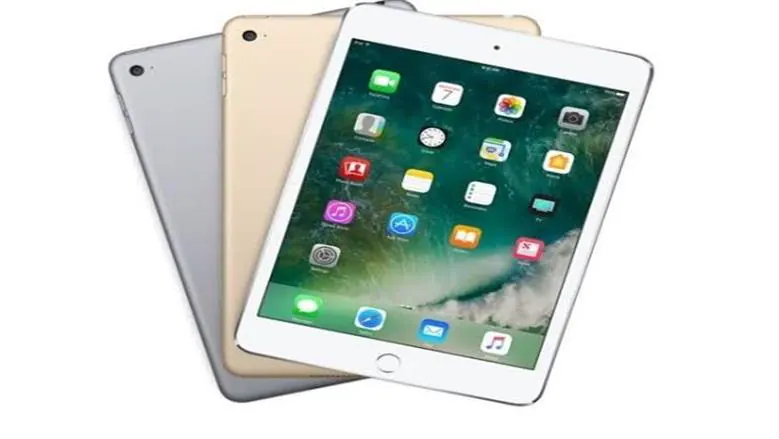
For those with an iPad and a Mac, there's a simple way to expand your workspace without purchasing an additional screen. Apple's Sidecar feature allows you to use your iPad as a second screen, and it's built right into your devices. To get started, ensure that both your Mac and iPad are logged into the same iCloud account. This is crucial for the feature to work seamlessly.
To activate Sidecar, open the Control Center on your Mac's menu bar, click on Screen Mirroring, and select your iPad from the list of available devices. Once connected, your iPad will function as a second screen for your Mac. You can then adjust the arrangement of your screens by going to System Settings, selecting Displays, and positioning your iPad relative to your primary screen.
Another useful feature for Mac users is Universal Control. While it doesn't turn your iPad into a second screen, it allows you to control both devices with a single mouse and keyboard. This feature enables you to move your cursor between screens, transfer files, and use one keyboard for both devices. To use Universal Control, ensure both devices are logged into the same iCloud account and have two-factor authentication enabled.
If you're a Windows user, you won't have access to Sidecar or Universal Control. However, there are third-party applications that can help you achieve a similar result. One popular option is Duet Display, which allows you to use your iPad as an additional screen for both Windows and Mac computers. Duet Display offers various control options and can be used with a stylus or Apple Pencil.
To start using Duet Display, you'll need to download and install the app on both your computer and iPad. Once installed, open the app on both devices and follow the on-screen instructions to connect your iPad to your computer. After setup, you can use your iPad as a second screen, expanding your workspace and increasing productivity.
Using your iPad as a second screen can be incredibly useful, especially when working on the go or in a confined space. This setup can help you stay organized and focused, allowing you to reference multiple sources or applications simultaneously. Whether you're using Sidecar, Universal Control, or a third-party app, the process is relatively straightforward and requires minimal setup.
In conclusion, turning your iPad into a second screen is a great way to boost your productivity and workflow. With the right tools and a little setup, you can easily expand your workspace and take advantage of the extra screen real estate. Whether you're a Mac or Windows user, there are options available to help you get the most out of your iPad and computer.
Key points
- Ensure that both your Mac and iPad are logged into the same iCloud account to use Sidecar and Universal Control.
- Duet Display is a popular third-party app for Windows users to use their iPad as a second screen.
- Using your iPad as a second screen can significantly enhance your productivity and workflow.